
Please note, this guide is relevant for all resources aside from MSRA (see The Complete Guide to the Qbank (Old) → for this exam).
What's new?
The Qbank is your space to practise thousands of exam-style single best answer (SBA) questions — all mapped to your syllabus and integrated with Pastest’s textbook and performance insights.
This new version of the Qbank has been designed to make question practice smoother and more connected to the rest of your study tools.
You can now:
- Start sessions based on your recent performance (like “My weakest specialties” or “Everything I’ve got wrong”)
- Move seamlessly between the Qbank and the Textbook
- Review sessions with detailed performance and exam readiness insights
Getting Started
You can access the Qbank anytime from your Study dashboard.
Once you're logged in, simply choose your exam from the side panel (under 'Your exams') or via the Practice section at the bottom of the screen if on a mobile device.
Here you’ll see a clean layout with your available Qbank session options listed. Once you’ve chosen your setup, select Start Session to begin answering questions.
Choosing a Session Type
When you open the Start Session screen, you’ll see several ways to begin:
Full Qbank
Start a new session that includes all remaining unseen questions in your Qbank. Ideal for broad revision.
Pick up where I left off
Continue from your most recent Qbank session.
You’ll resume any remaining unseen questions from the last session setup.
If there are no unseen questions left from that setup, this option will be disabled.
Everything I’ve got wrong
Focus your practice on questions you previously answered incorrectly.
You can choose to work across all specialties or just a few selected ones.
My weakest specialties
Target your weakest areas, based on your performance data.
Specialties shown in orange indicate scores below the exam pass mark — you can select any or all for your next session.
By default, sessions load unseen questions — but you can toggle to show All if you want to include seen questions too.
A specific specialty
Select one or more individual specialties to build a focused session.
By default, sessions load unseen questions — but you can toggle to show All if you want to include seen questions too.
Resetting
The reset option on the Start Session screen will set every question back to unseen. But importantly, it will not clear your performance history — all your progress data will remain.
If you want to fully reset all your data, you can do this at any time from your Account Settings if you’d like to start fresh.
Qbank sessions by topic
If you want to focus on a specific topic, you can also do this. Find the topic you want to study in the textbook and then simply select the Qbank button from there to create a new Qbank session containing only questions for that specific topic!
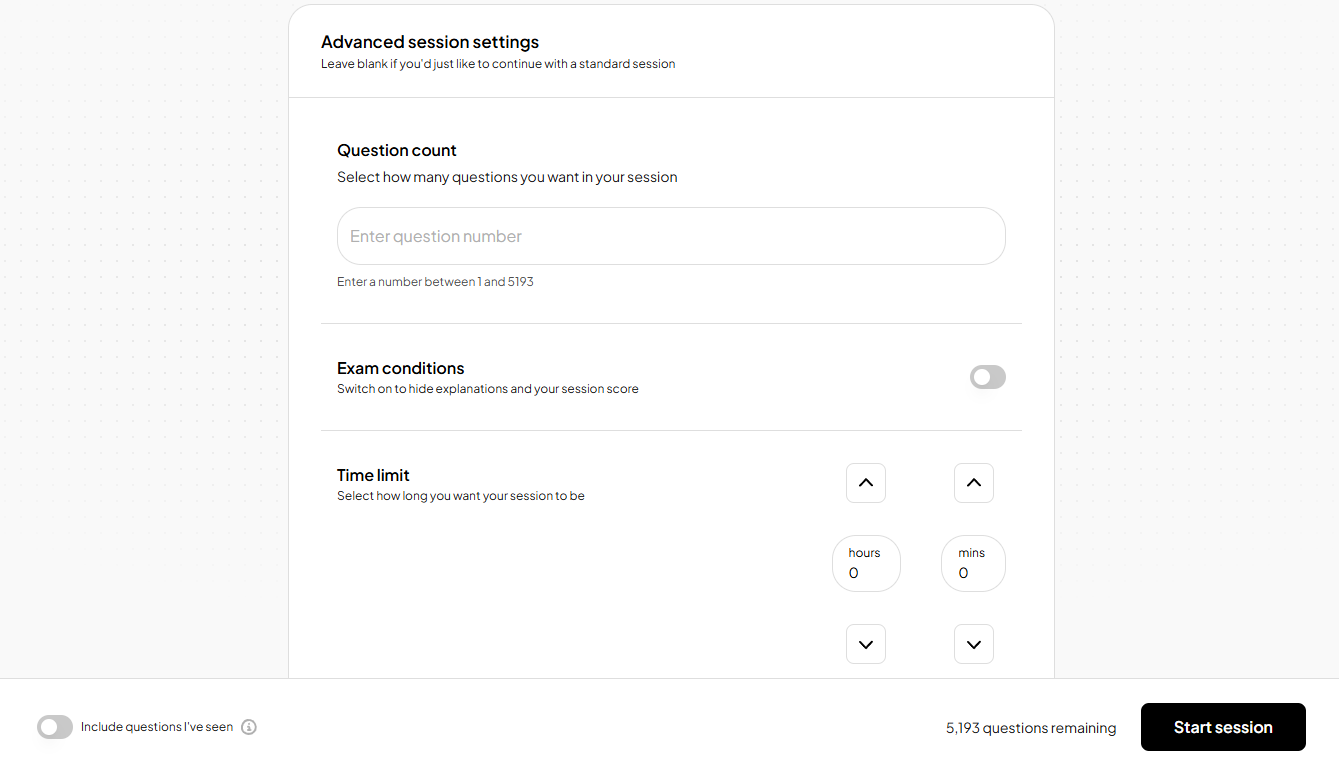
Advanced Settings
Use Advanced Settings when you want to choose a specific number of questions or practise under timed conditions. If you prefer to jump straight in, you can ignore this section and select Start Session — it's entirely optional!
How Advanced Settings work:
For Full Qbank sessions, Advanced Settings are already open by default. You can adjust them if you want, or simply ignore them and begin your session immediately.
For Specific Specialty, Weakest Specialties, or Everything I’ve Got Wrong, you’ll first need to select one or more specialties you want to focus on. Once you’ve made your selection, Advanced Settings becomes available and you can configure the session as needed.
What you can control:
-
Number of questions
Set how many questions you want in your session.
If you request more questions than are available, a message will let you know — you can still start the session with the remaining questions.
-
Exam conditions
Toggle this on if you want answers and scores revealed only at the end of the session.
-
Timed practice
Set a time limit for your session.
Time increases in 10-minute intervals.
Maximum duration is 5 hours.
When the timer runs out, you can choose to end the session or continue if you’d like to finish.
Why use Advanced Settings:
Advanced Settings help you tailor practice to your goals — for example:
Mock exam simulation: match the question count and timing to the real exam format.
Extended-time practice: if you receive added time in your real exam, replicate that here by increasing your timer.
Answering Questions
When you open a question you’ll see:
- The question and answer options
- Tools like Clues, Bookmarks and Notes in the bottom toolbar
- The Submit button to record your answer
Once you submit an answer:
- The correct answer explanation and your chosen answer explanation will display automatically
- Other explanations can be expanded if you want to read them too
- Each answer option shows how many of your peers also selected that option (as a percentage)
- Any external links or related resources display beneath the explanations
At the bottom of the screen, you’ll also see a short overview from the relevant textbook topic and a Jump to Topic action to open the full page in the Textbook.
Use the navigation bar to move forwards and backwards between questions, or open the dropdown to jump to any question you’ve already seen.
Using the Textbook
Each Qbank question connects directly to the Pastest Textbook. On every question or explanation screen, you’ll find:
- A link to the textbook topic on the right
- A brief overview of the related topic beneath the question
You can also start Qbank sessions directly from the Textbook:
- On a specialty page: selecting Qbank will launch the session setup with that specialty preselected.
- On a topic page: selecting Qbank starts a topic-specific session with relevant questions.
If a session is already in progress, the Study Dashboard will prompt you to resume or end that session before starting a new one.
Tutor Mode
The Pastest Tutor Mode is an intelligent study companion built into the Qbank that provides instant, exam-focused support while you answer questions. It can explain concepts, clarify why answers are correct or incorrect, answer follow-up questions, and help deepen your understanding without interrupting your revision, making learning more interactive and efficient.
So click on the Tutor Mode tile and ask it some questions!
Comments & Discussion
Every question now includes a comments & discussion thread beneath it — your space to discuss tricky questions, share insights, or ask for clarification. For more information, check out our Comments Guide →
Session Progress & Performance
As you’re answering questions, you’ll see your session progress on the right of the screen.
This includes:
- Your session score (based on a combination of how many questions you’ve answered correctly and how many questions you’ve attempted)
- A breakdown of correct, incorrect, and skipped questions
Hover over your score to see a tooltip explaining what it means.
Ending a Session
When you’re done, select End Session from the header. You’ll be given the option to end and mark the session or save for later.
Reviewing a Session
Choosing End Session opens your Session Summary, showing:
- Your session score compared to the exam pass mark
- A breakdown of correct, incorrect, and skipped questions
Unseen questions from that session aren’t marked as completed — so if you pick up where you left off, they’ll still appear in future sessions.
Beneath your session performance metrics is a table of all the questions you’ve seen, where you can access and review your answers.
You can filter your list by:
- Incorrect
- Correct
- Skipped
- Bookmarked
Tips & FAQs
Can I reset my Qbank?
Yes. The reset option on the Start Session screen will set every question back to unseen. But importantly, it will not clear your performance history — all your progress data will remain.
If you want to fully reset all your data, you can do this at any time from your Account Settings if you’d like to start fresh.
Where are my historical non-SBA questions?
Our new Qbank is SBA-only, following the general trend among the exams we serve for standardising to a single question type. If you review an old session containing other question types e.g. EMQs, you’ll see a notification that they’re no longer supported.
In Summary
The redesigned Qbank gives you:
- Smarter ways to target your practice
- Integrated learning with textbook links
- Richer feedback on your progress
- A clean, modern learning layout
- A space to learn with others through comments and notifications
Every element is designed to keep your learning flow consistent — whether you’re answering, reviewing, or studying a related topic.